
How to factory reset my device?
EditUse a factory reset when you want to erase a device before giving it to someone else, or when troubleshooting cannot be solved by restarting, updating, or resetting network settings.
If the device is managed by Parental Control or another device admin app, remove that management first. A managed device can block factory reset from Settings.
Factory reset from Settings
Use this method when the device starts normally and you can unlock the screen.
-
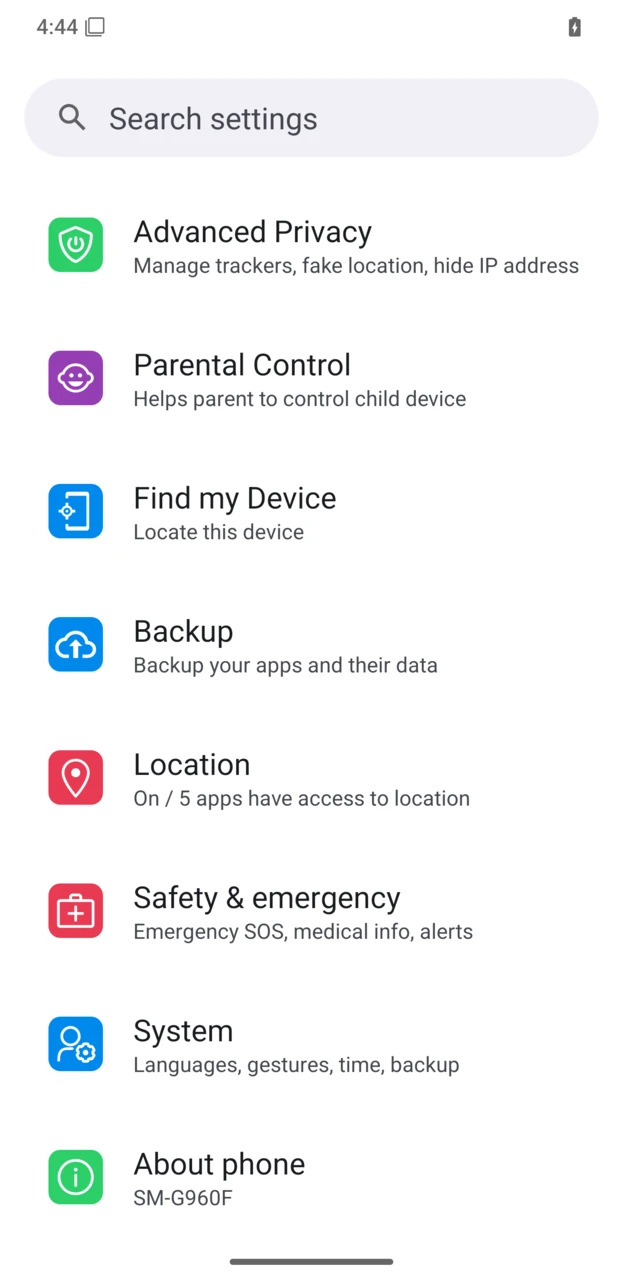
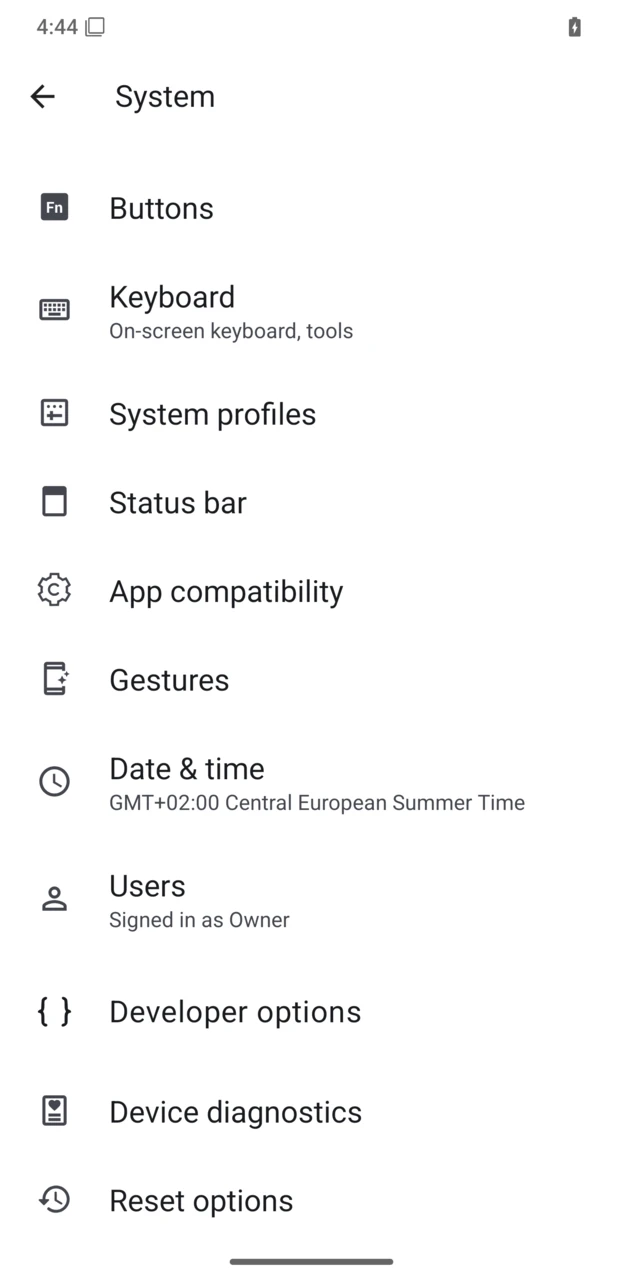
Open Settings, then tap System.
-
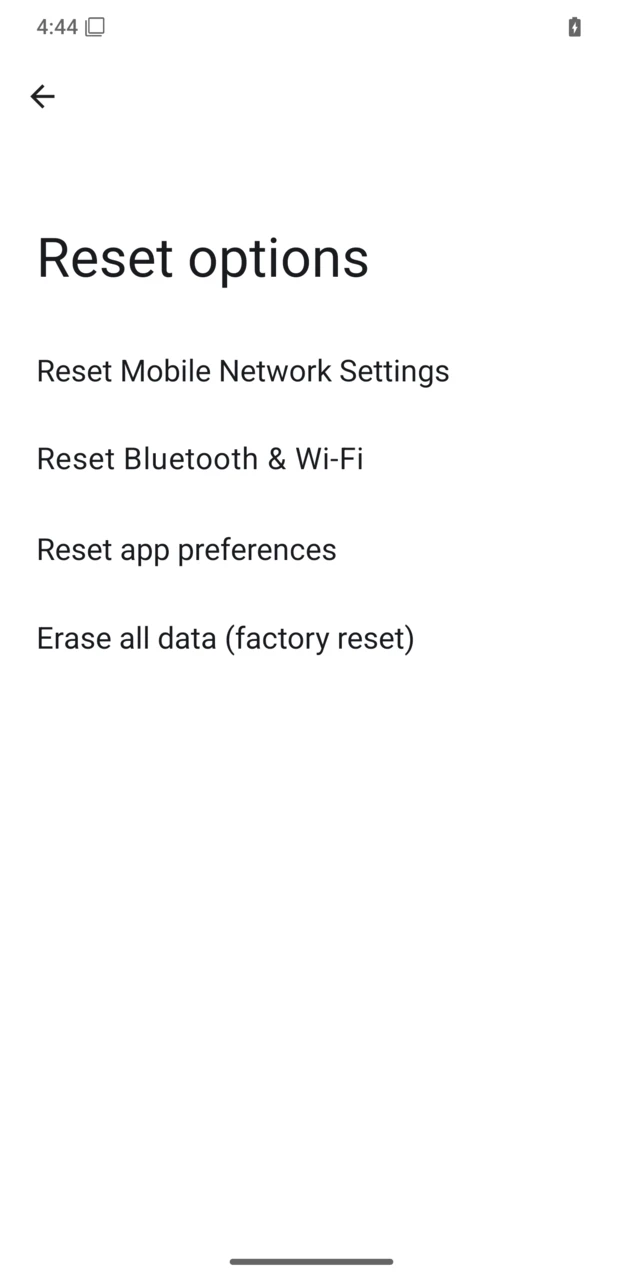
Tap Reset options.
-
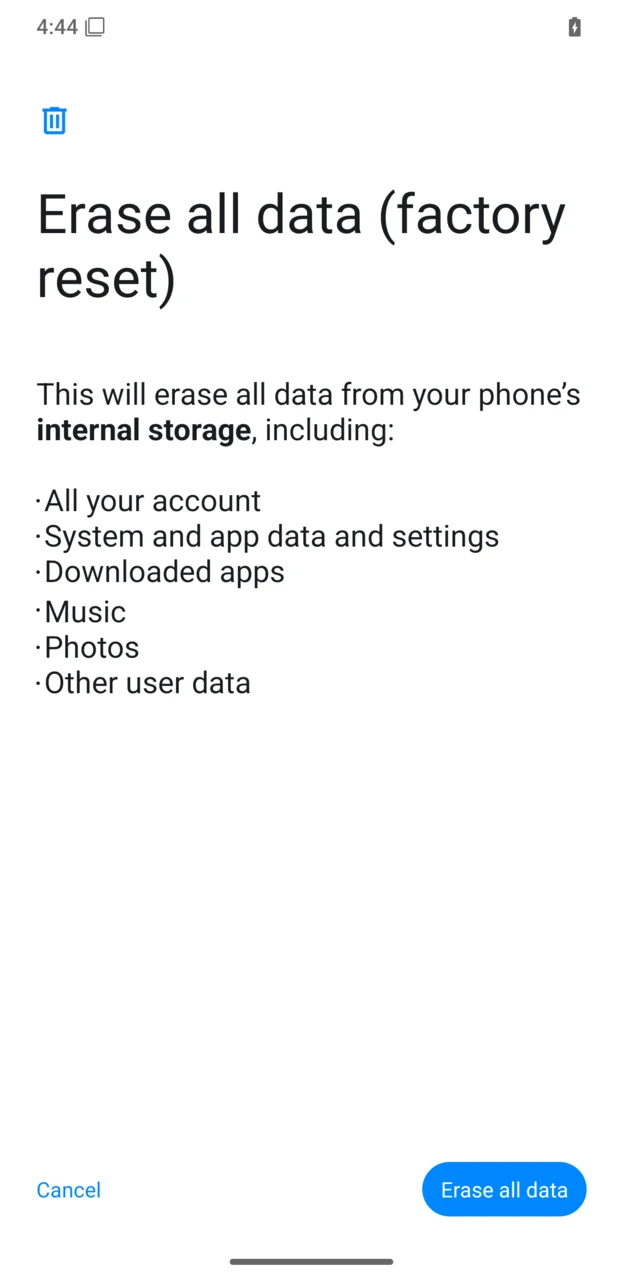
Tap Erase all data (factory reset).
-
Review the warning screen. Continue only if you are ready to erase the device.
The exact menu labels may vary slightly between Android versions. On older versions, Reset options may be under System > Advanced.
Factory reset from recovery
Use recovery when the device cannot boot normally or when Settings is not available.
- Turn the device off.
- Press and hold Power + Volume Up until the recovery screen appears.
- Select Factory reset.
- Select Format data / factory reset.
- Confirm the data wipe.
- Reboot the device when recovery reports that the wipe is complete.
Some devices use a different key combination. If Power + Volume Up does not open recovery, check the installation guide for your device.