
How to contribute to translations
EditWe use Weblate to translate /e/OS and Murena Workspace. Anyone can help, in any language.
What is Weblate and why do we use it?
Weblate is a libre, web-based translation tool with tight version control integration. It keeps translations in sync with the source code, shares translations across components, runs quality checks and links each string to its source file.
We use it to localize the text of all the default applications of /e/OS and of Murena Workspace, without anyone having to edit source files by hand.
Which languages are supported?
We focus on the following languages:
- English
- Italian
- French
- German
- Spanish
In addition to these 5 languages, community members contribute to other languages, for instance:
- Polish
- Dutch
- Russian
- Turkish
- Bulgarian
Your language is not listed? Please create an issue in GitLab to request its addition.
Get started
1. Log in to Weblate
You need an E Foundation GitLab ID to log in.
Go to https://i18n.e.foundation/ and click
Sign inat the top right corner: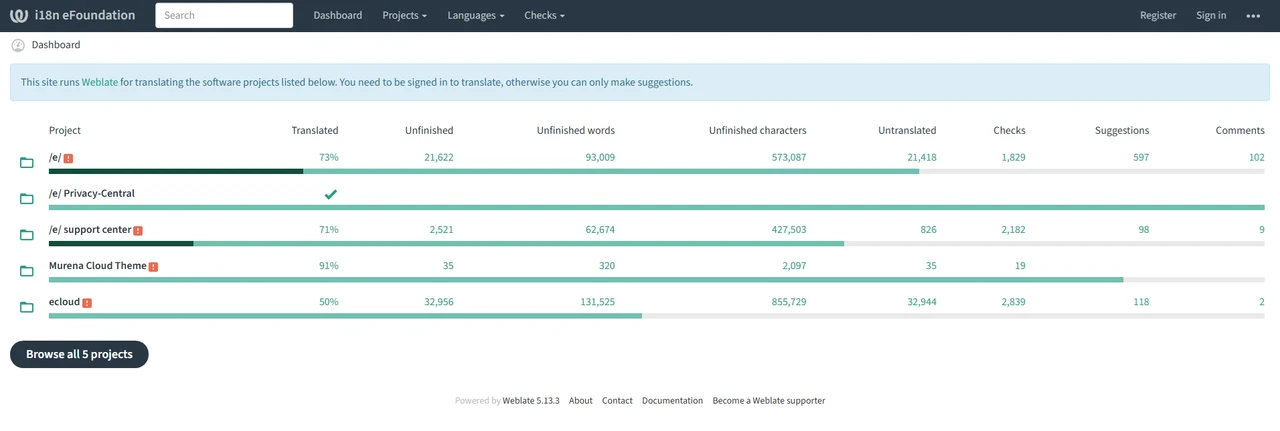
Once logged in, you should see your dashboard:
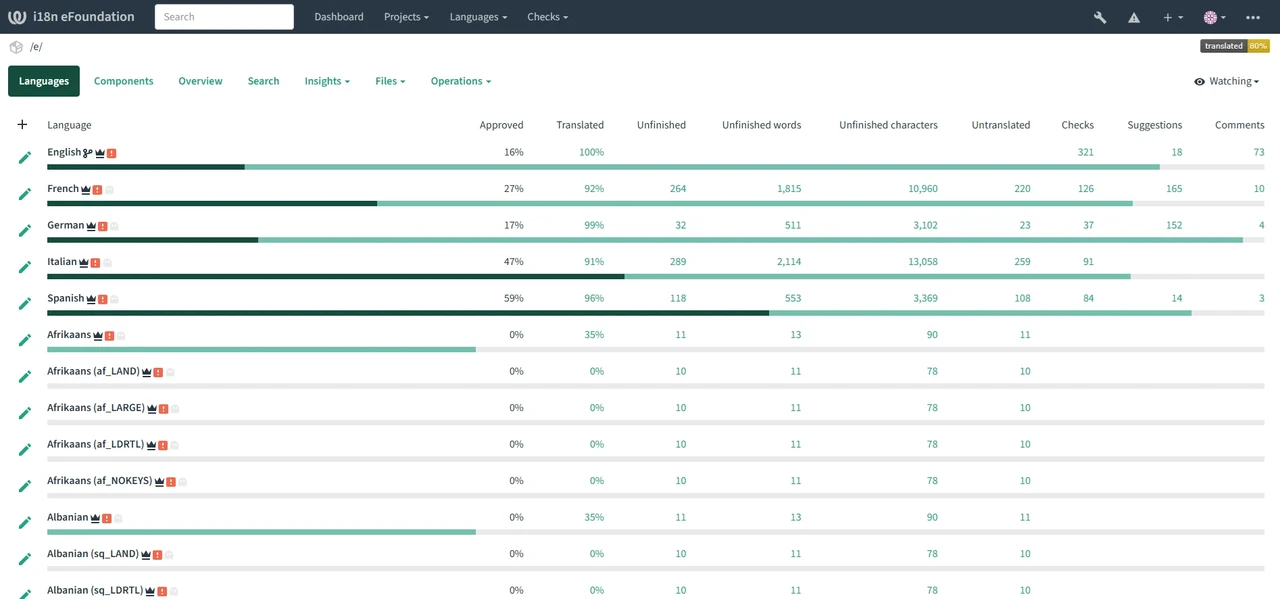
2. Request the rights to translate in your language
Being logged in is enough to browse the projects, but saving translations requires being a member of the translators group of your language.
- Create an issue in GitLab to request the rights to translate in your language, with your language and your Weblate username
- Join the translators group on Telegram, so the team can reach you and you can talk with the other translators of your language
- Once an admin has added you to the group, log out of Weblate and log in again
Insufficient privileges for saving translations. when you save a string. This is expected: request the rights as described above.3. Pick a project and a language
In the menu, go to Projects > Browse all projects:
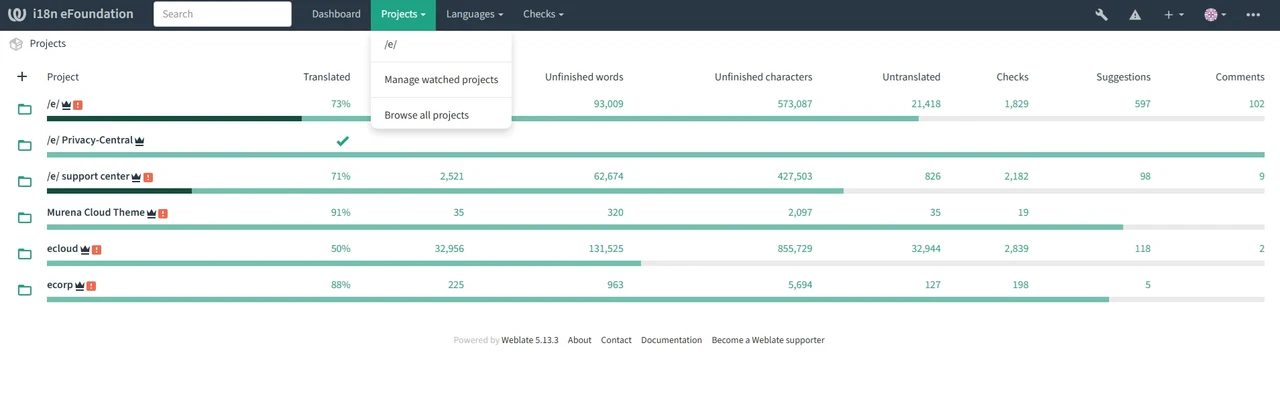
Select the project you want to contribute to:
- /e/OS to translate /e/OS
- Murena Workspace to translate Murena Workspace
Each project contains several components, usually one per application (for example BlissLauncher or AccountManager). Select the component you want to work on:
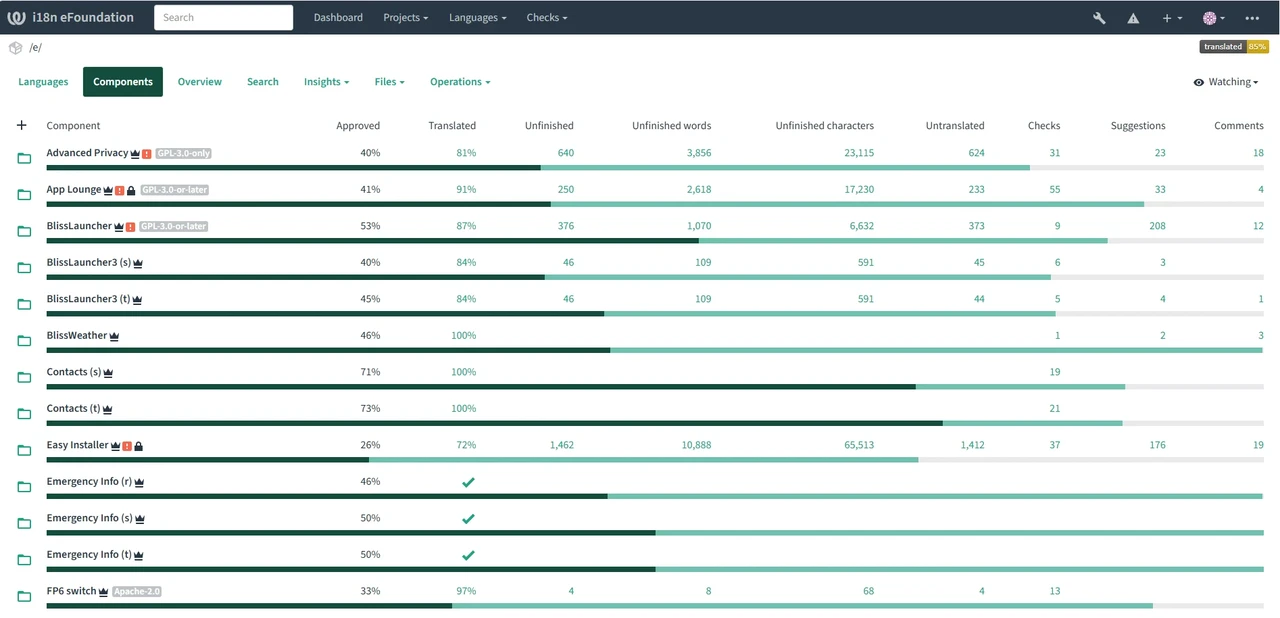
Select the language you translate into:
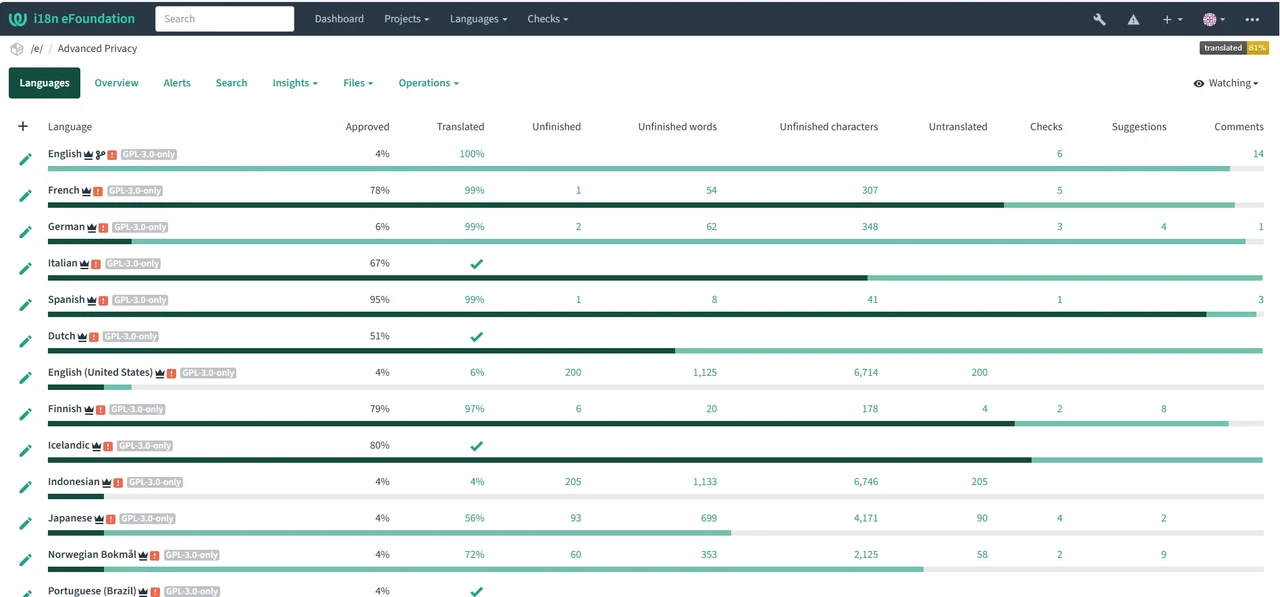
Translate
On the language page, start with
Unfinished strings, thenStrings waiting for reviewif there is none. TheSearchtab lets you find a specific string: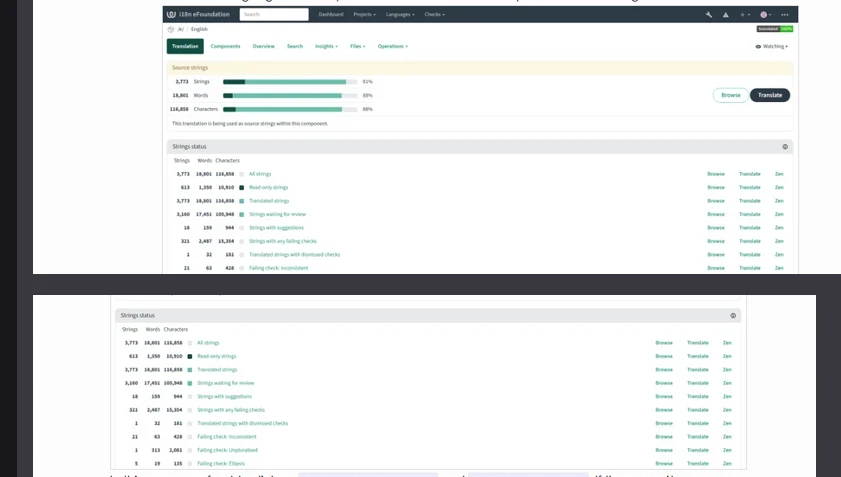
On the translation page, the source text in English is at the top. Type your translation in the box below it:
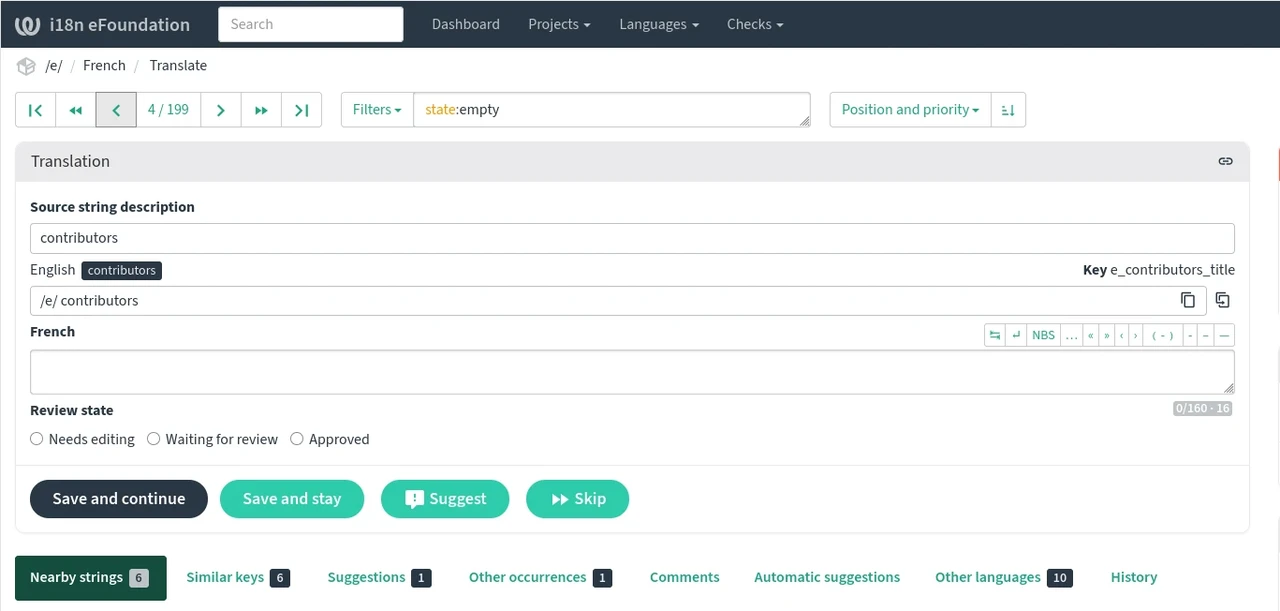
Click
Save and continueto go to the next string. Keep the defaultWaiting for reviewoption selected.
Why keep Waiting for review selected?
A translation sounds more natural once someone else, or yourself a few days later, has looked at it with a fresh eye. Marking a string as Waiting for review lets another contributor of your language check it.
When you review a translation that looks good to you, tick Approved and click Save and continue.
For Murena admins: grant the rights
- Check that the person has already logged in once to https://i18n.e.foundation/, otherwise the account does not exist yet.
- In the Weblate admin interface, go to Users, open the user and add them to the group
Community Reviewers <language>. - If the group of that language does not exist yet, create it by copying an existing one (roles
Review strings,Manage languagesandManage glossary, restricted to the language). - Tell the person it is done and ask them to log out and log in again.
Need help?
Check the Weblate documentation, or ask in the translators group on Telegram.